How to Track Your Habits With a Home Screen Widget
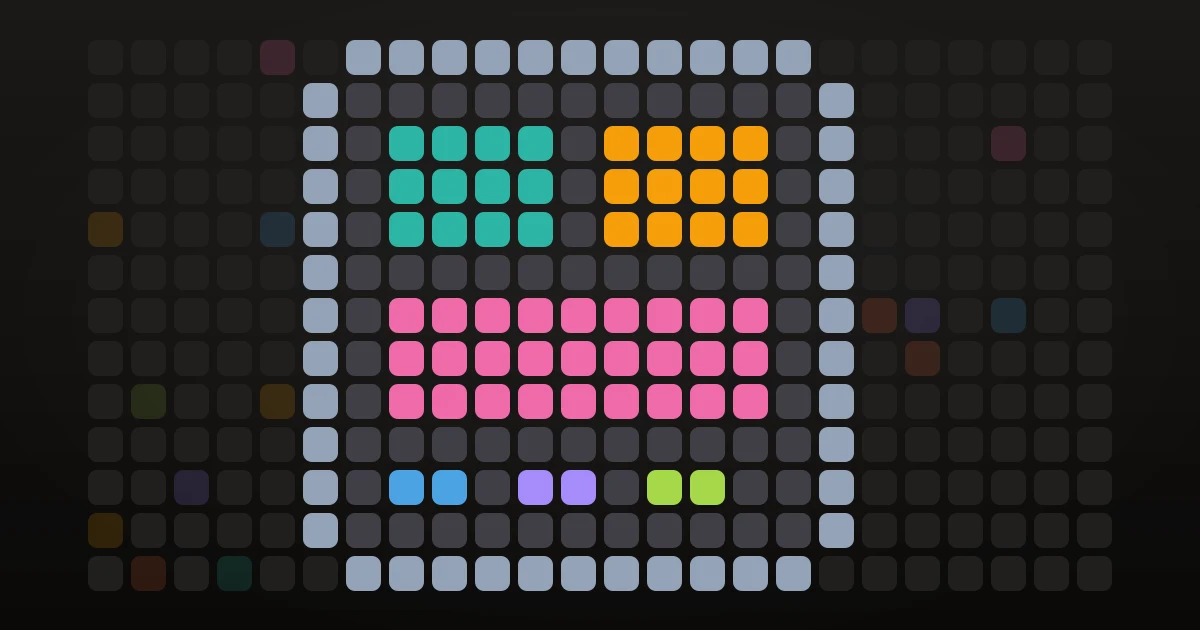
The short answer
A widget puts your habit grid on your phone’s Home Screen, on iPhone or Android, so you see it without opening anything. HabitLove has three: the small one shows one habit and its grid, the medium one adds the streak and a button to check it off, and the large one shows up to 12 habits and their last 10 days. Put the one for your shakiest habit on your first page.
A habit you don’t see gets forgotten
Most missed habits are missed because people forget. You meant to read tonight, the day got away from you, and you remember it as you turn off the light. Your tracking app was installed, but tucked into a folder on the third page, and nothing reminded you it was there.
A paper calendar taped to the fridge solved this in its own way: it was in your line of sight several times a day. A widget does the same on your phone. It puts your grid on the Home Screen, and you run into it every time you unlock, whether you came for a message or the weather.
A notification interrupts what you’re doing and expects a reaction right away, while a widget waits for you to walk past it, which makes it the gentler reminder. Keep notifications for a precise time and let the widget cover the rest of the day.
HabitLove’s three widgets
The small widget shows one habit and its grid of the last weeks. It takes up the space of four app icons, and it suits a habit you want to keep in view without touching it from the Home Screen.
The medium widget shows one habit with its streak, its grid and a button to check it off. That button marks the day done without opening the app, and today’s tile fills in right in the widget. Save it for the habit you’re working on right now.
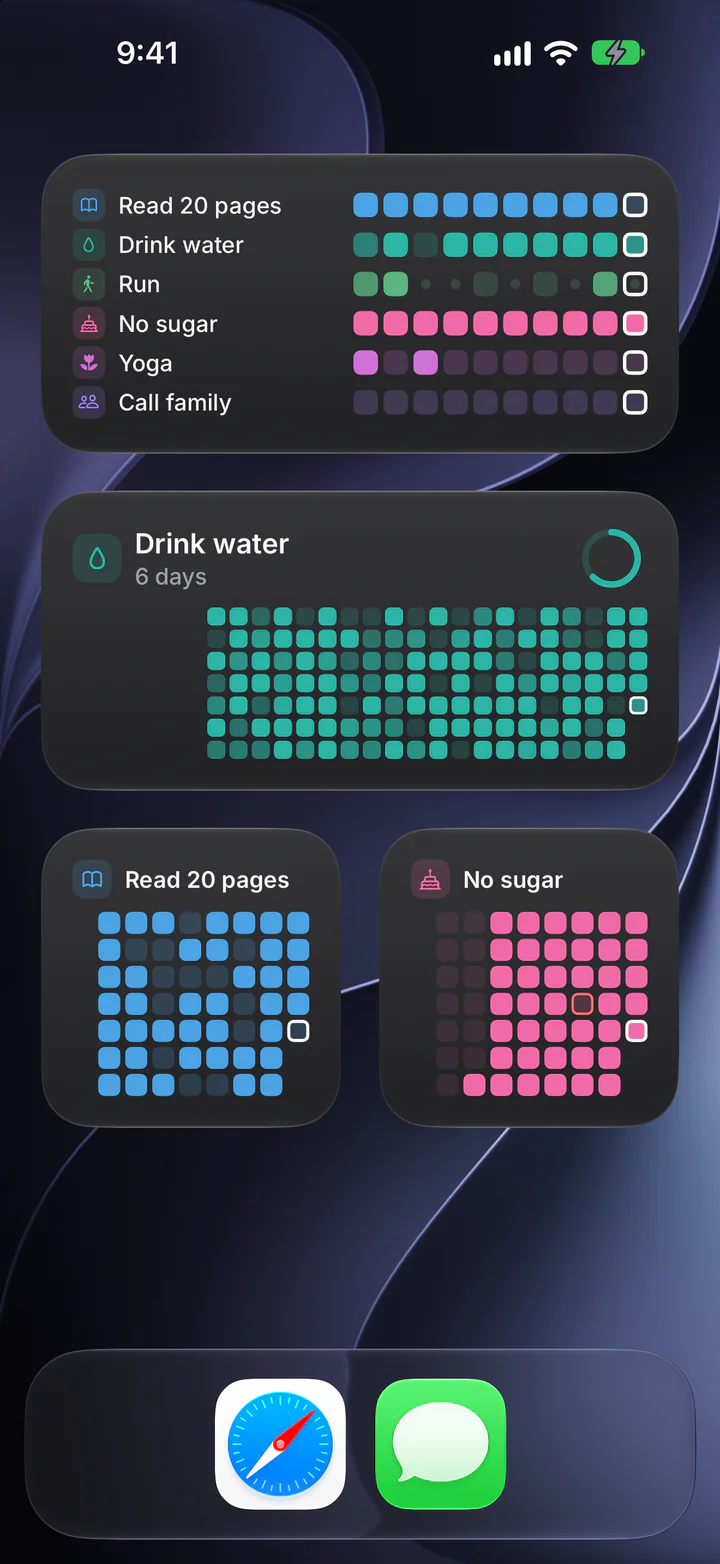
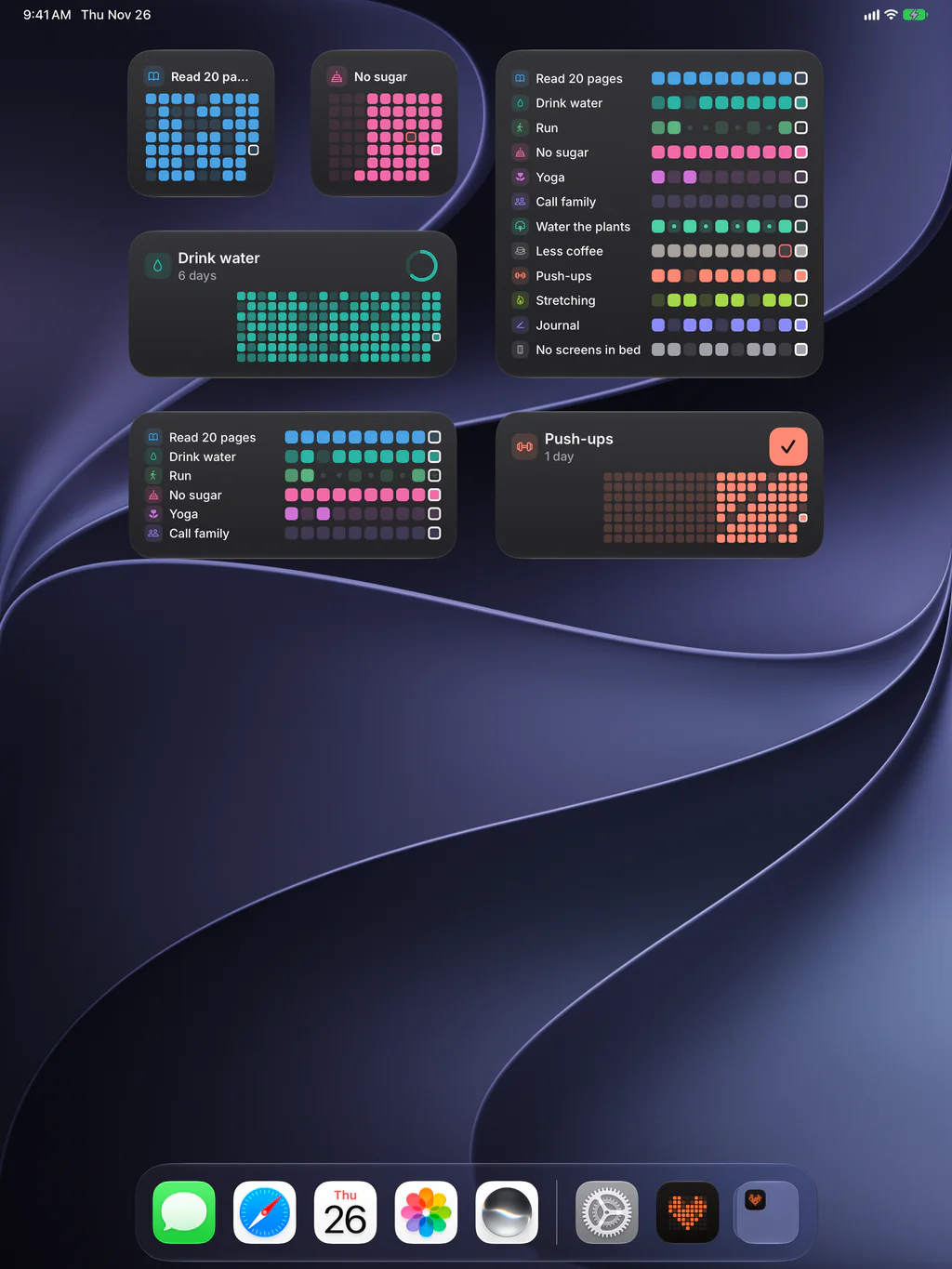
The third widget, “Habits,” brings several habits together. In the large size, it shows up to 12, each with its last 10 days. At a glance, you see your whole day and the past week and a half. Tapping a habit opens its page in the app.
Adding a widget, step by step
On your iPhone’s Home Screen, touch and hold an empty area until the icons start to jiggle. Tap Edit at the top of the screen, then Add Widget. In the list, search for HabitLove, swipe through the available sizes and tap Add Widget. Then drag it where you want it.
On Android, touch and hold an empty area of the home screen, then tap Widgets. Find HabitLove in the list and drag the size you want onto the screen. You get the same three sizes, with the check-off button on the medium one.
At first, the widget says “Choose a habit.” Touch and hold it and open its settings to pick the habit to show. For the “Habits” widget, you select up to 12 habits the same way.
If you haven’t created a habit yet, the widget invites you to do it in the app. The article on how to build a habit that lasts helps you choose the first one.
Check off without opening the app
With the medium widget’s button, checking off takes a single tap. Opening an app, waiting for it to load, finding the right row and tapping the box only takes a few seconds, but those seconds are enough to get distracted by something else.
For a “Yes / No” habit, a tap marks the day as done. For a Counter, each tap adds one, a glass of water for example. For a Measure, where you have to enter a value, the button opens the app straight to that day’s entry sheet.
Once you’ve completed the habit from the widget, its remaining reminders for the day go quiet, just as if you’d checked it off in the app.
Take a water counter: with a goal of eight glasses, you tap the widget after each glass and watch the total climb through the day. The article on drinking enough water walks through this setup, with a reminder repeated every hour.
Where to put your widget
A widget on the fourth page of your Home Screen won’t be seen any more often than the app itself. Put it on the first page, the one you land on when you unlock your phone. If space is tight, move the icons you open out of reflex to another page. You could, for example, put your reading grid where your social media apps used to be: your thumb will go looking for the feed and land on the book you mean to read. The challenge described in less screen time at night relies on this kind of rearranging.
Next, choose what to show. The medium widget goes to your shakiest habit, the one you forget or keep putting off. Well-established habits don’t need that spot and can move to the large widget, on the same page or the next.
Don’t put them everywhere; stick to one or two. Three medium widgets and a large one on the same page end up as wallpaper, and your eye stops landing on them.
An example Home Screen
Say you track six habits and want to build a new one, reading at night.
At the top of the first page, a medium widget for “Read 20 pages.” It stays within reach of your thumb: its grid shows how the week is going, and you tap its button at night when you put the book down. Right below it, your everyday apps keep their places.
On the second page, the large “Habits” widget gathers the other five. A swipe left at the end of the day shows what’s left to do, and tapping a row opens that habit in the app.
In a month, once reading happens without thinking, it moves to the large widget and the top spot goes to the next habit.
Match the widget to your screen
In the widget, each habit keeps the color you gave it in the app, so you can recognize it without reading its name. The widget’s background depends on the “Widget theme” setting, in the app’s theme settings. It goes all the way to pure black, handy with a dark wallpaper.
The grid you see is the same as in the app: one tile per day, filled when the day is done. If this idea is new to you, the grid method explains how to read it and what it shows after a few weeks.
What the widget shows other people
A widget is visible to anyone who looks at your Home Screen: a coworker in a meeting, the person next to you on the subway. For “Read 20 pages,” that hardly matters. For a more personal habit, a habit to quit for example, you may prefer to keep it inside the app and save the widget for others.
The widget itself sends nothing anywhere. It displays the data stored on your phone, like the rest of the app. The article on the privacy of habit data covers what HabitLove stores and where.
Where to start
Add a single medium widget, for the habit you want to build this month, and place it at the top of your first page. Leave it for two weeks without changing anything else. If you find you check off more regularly, add the large widget for the rest of your habits.
All three widgets come with HabitLove, which is free and needs no account.
Frequently asked questions
How do I add a HabitLove widget on iPhone?
On your Home Screen, touch and hold an empty area, then tap Edit at the top and Add Widget. Search for HabitLove, pick a size and tap Add Widget. Then touch and hold the widget to choose which habit it shows.
Can I check off a habit from the widget?
Yes, with the medium widget: its button checks off the day without opening the app. For a habit tracked as a Measure, the button opens the app on the entry for that day’s value.
How many habits can a widget show?
The small and medium widgets show one habit each. The “Habits” widget, in the large size, shows up to 12 with their last 10 days. You choose which ones in the widget’s settings.
Do the widgets follow dark mode?
They follow the app’s “Widget theme” setting, which goes all the way to pure black. So you can match your widgets to your wallpaper without changing the theme of the app itself.

Track this habit in HabitLove
One grid per habit, with reminders and streaks. Free, no account needed.