One tile a day, and your grid fills up
HabitLove tracks your habits on iPhone, iPad and Apple Watch, and on Android phones and tablets. Check off your day with a single tap and your year shows up as a grid, one tile per day. The app is free and works without an account.
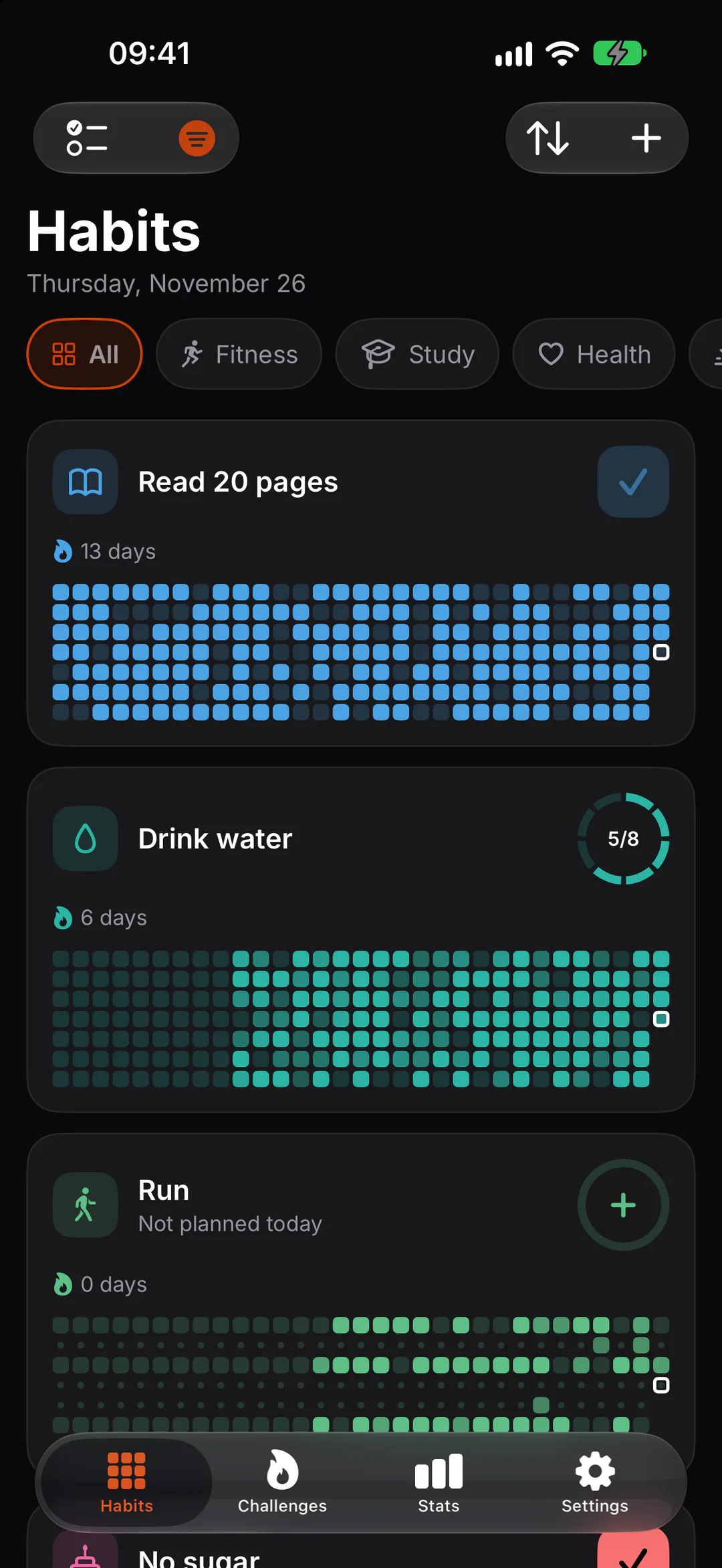
Your year in a grid
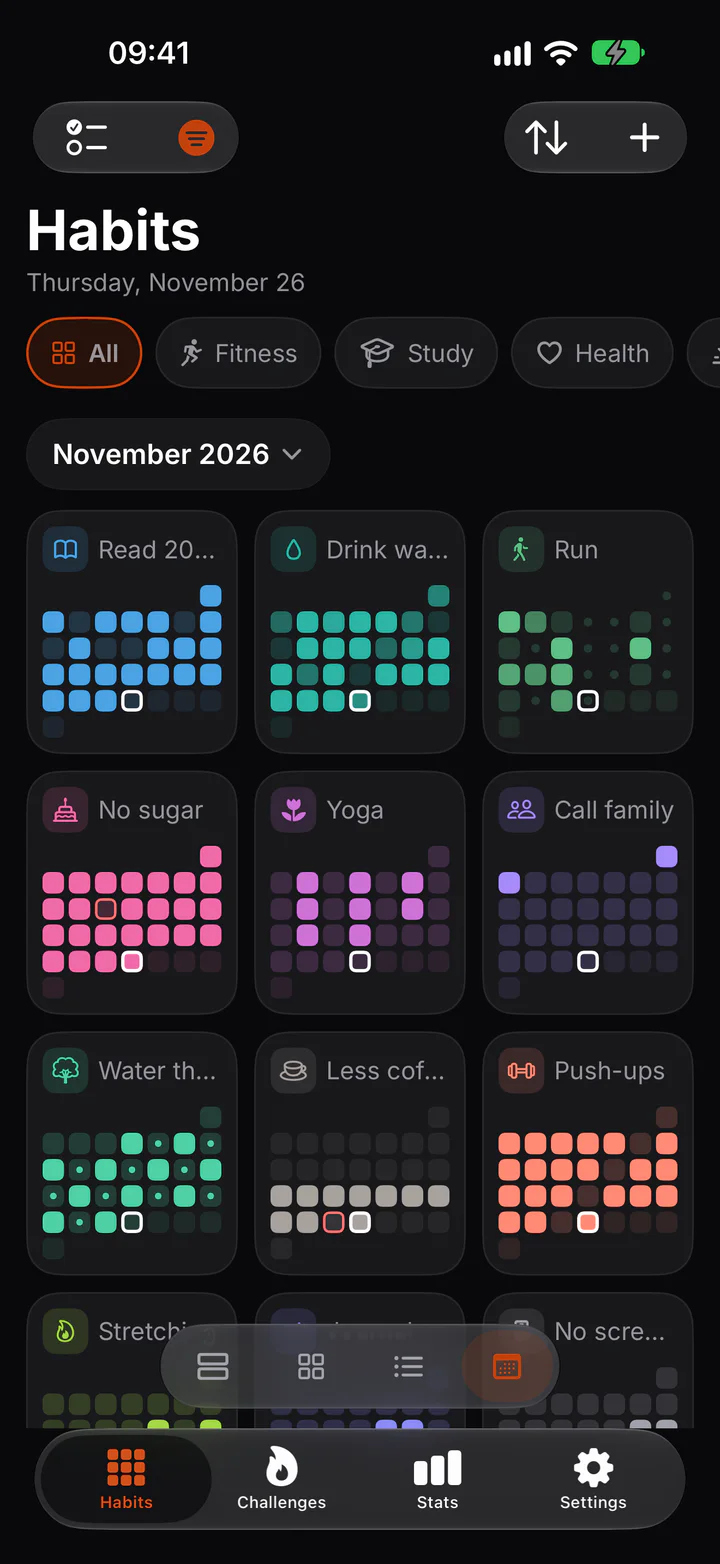
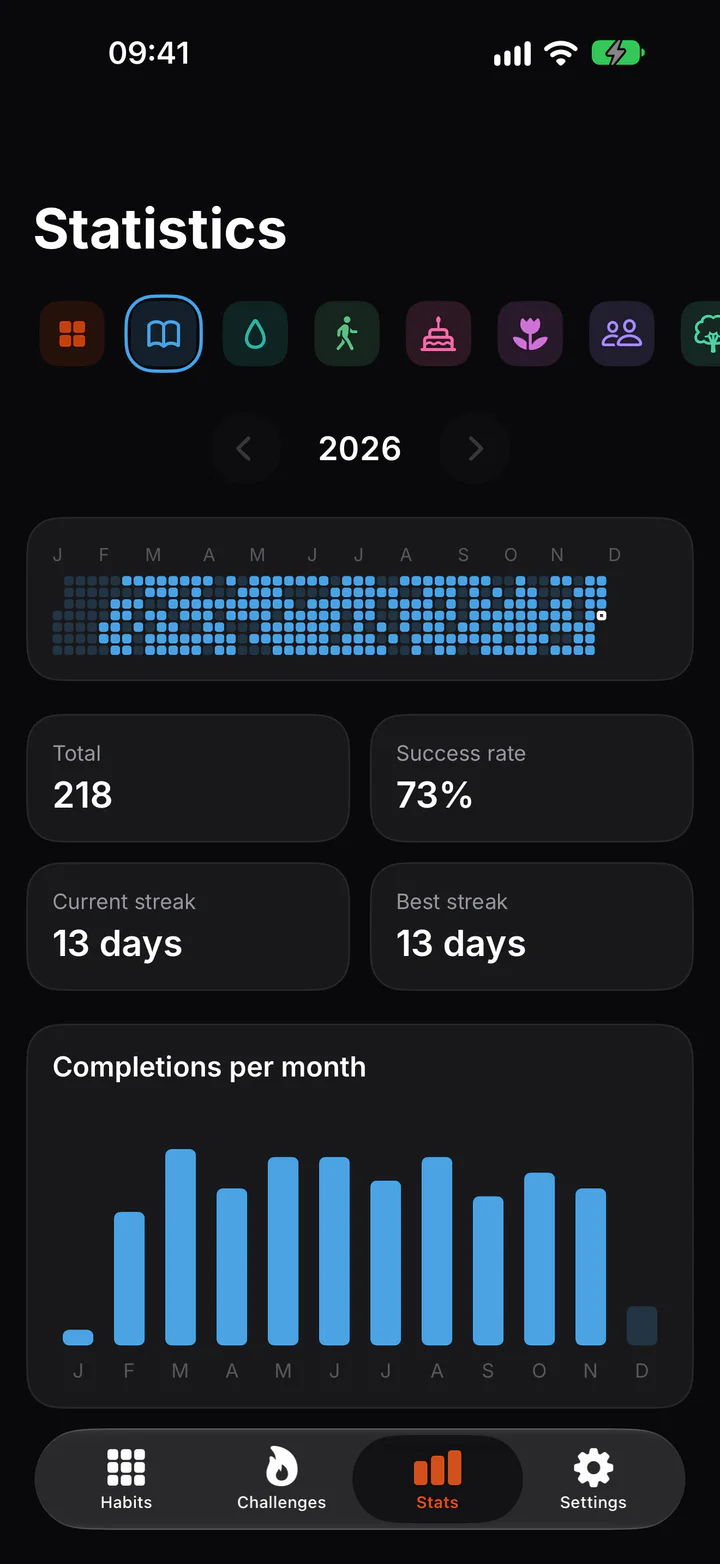
Each habit has its own grid: one tile per day, which fills with color once the day is done. Its page also shows your current streak, your best streak and your 30-day rate. Touch and hold a day to correct it or add a note.
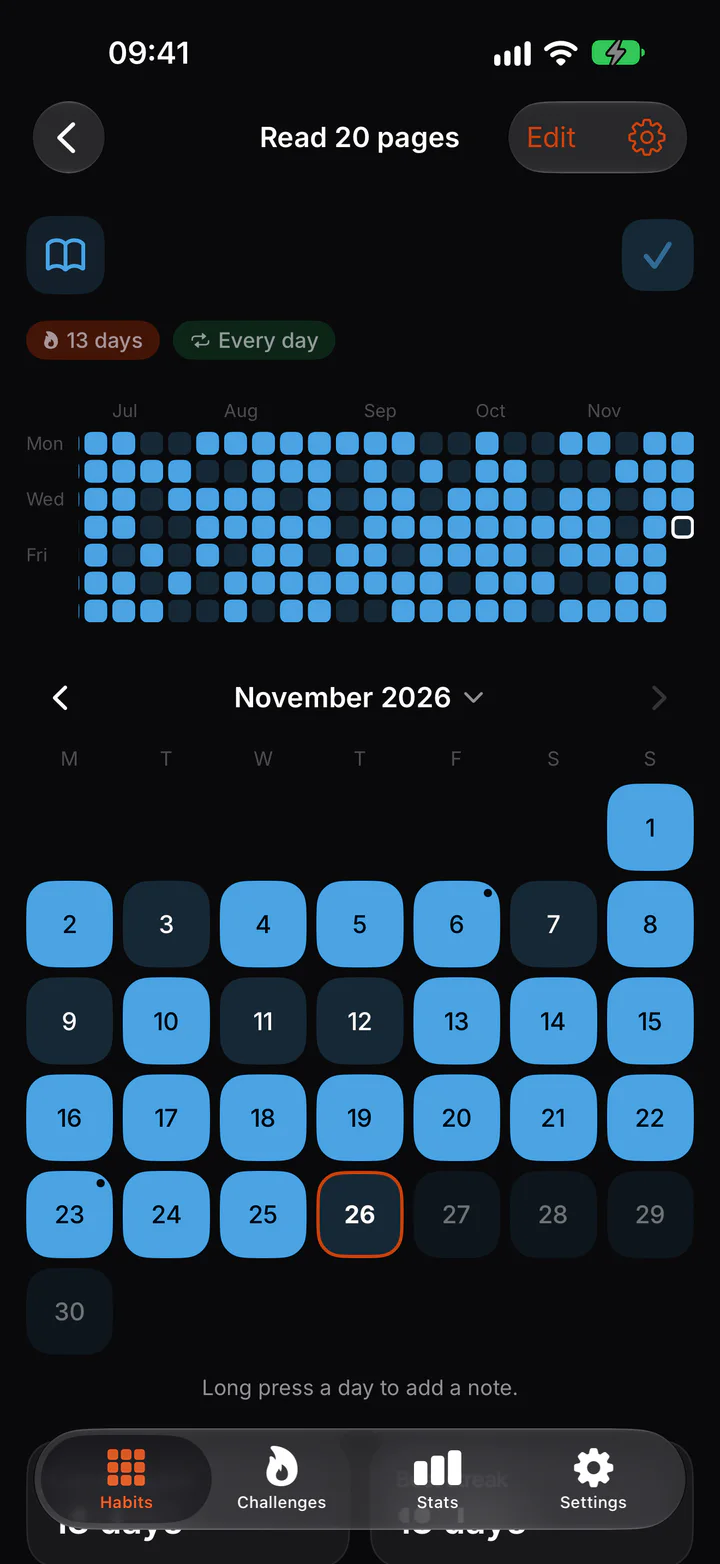
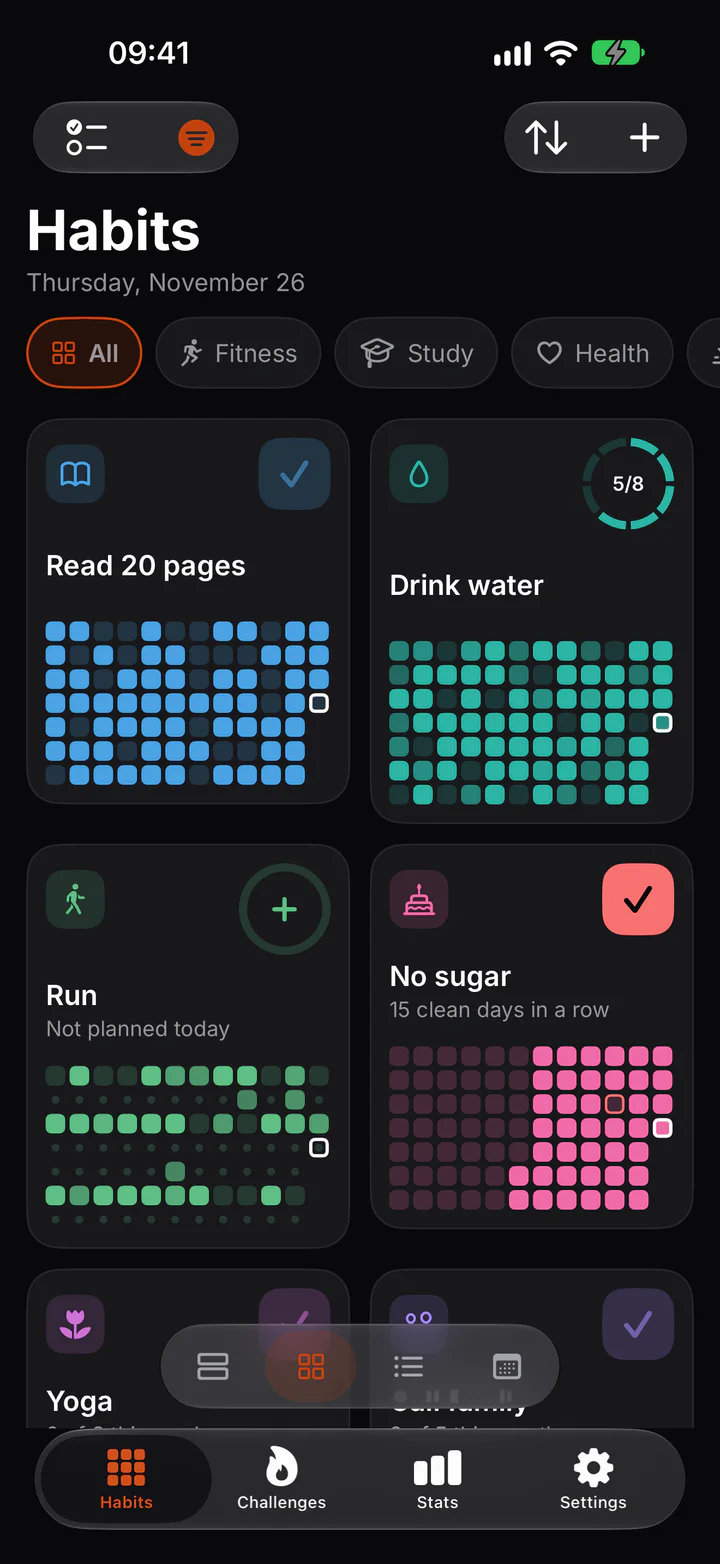
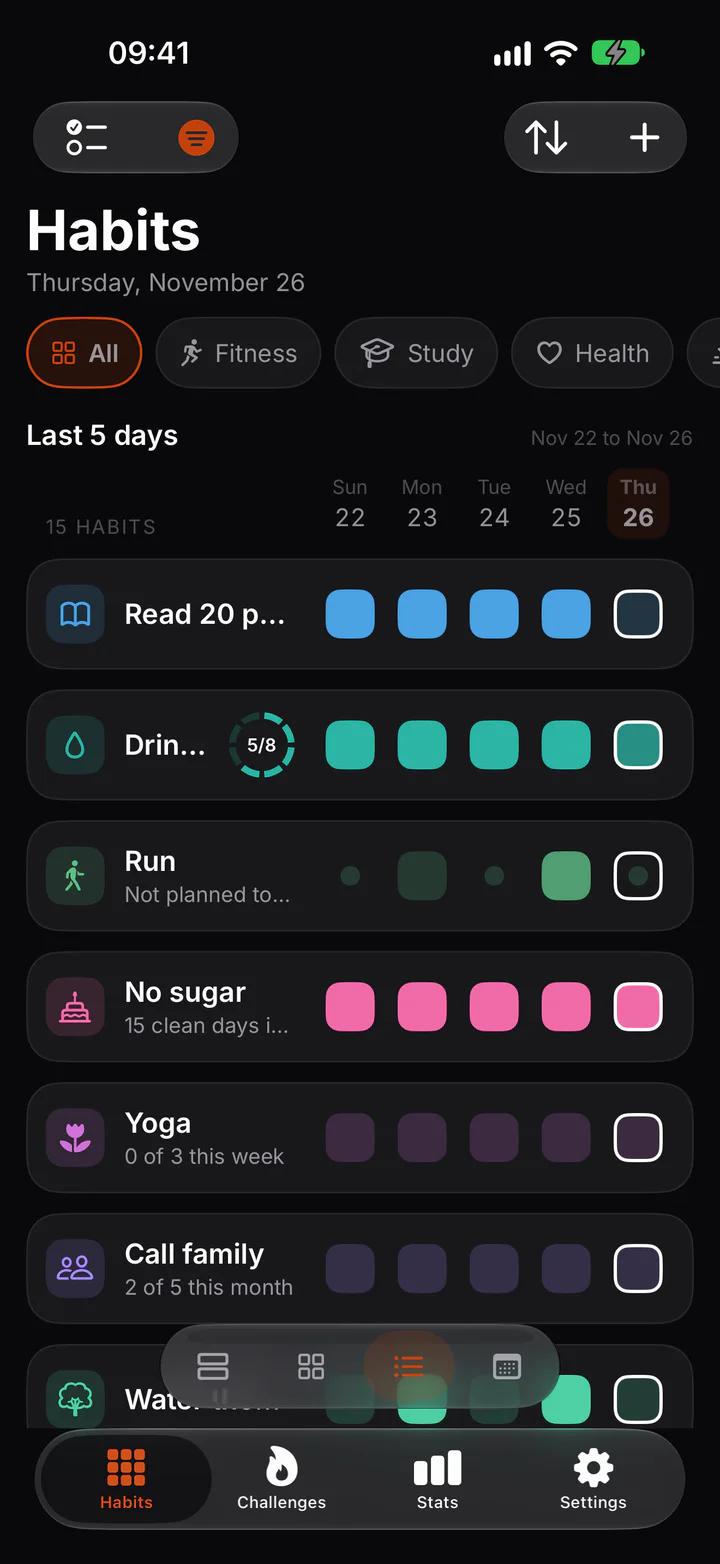
Four views: Cards, Compact, List, Month
The Habits tab has four layouts. Cards shows each habit's grid, and Compact fits more habits on screen. List lines up the last few days of all your habits, and Month gives you a calendar for each habit.
Habits to build, habits to quit
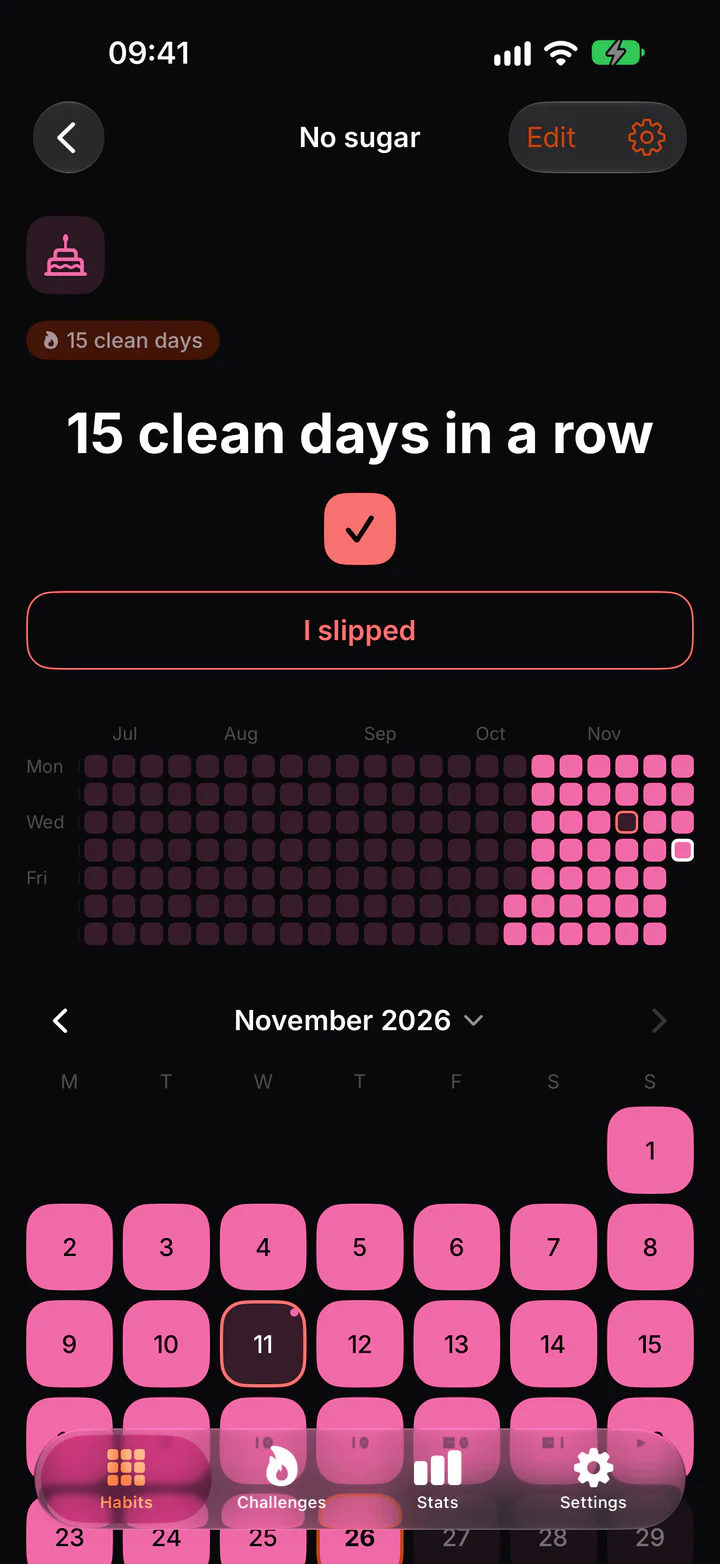
When you create a habit, you choose Build or Quit. For a habit you want to quit, every day counts as clean by default: you only log your slips, with the “I slipped” button. After a slip, your streak restarts from zero, but the days already on your grid stay there.
Yes / No, Counter or Measure
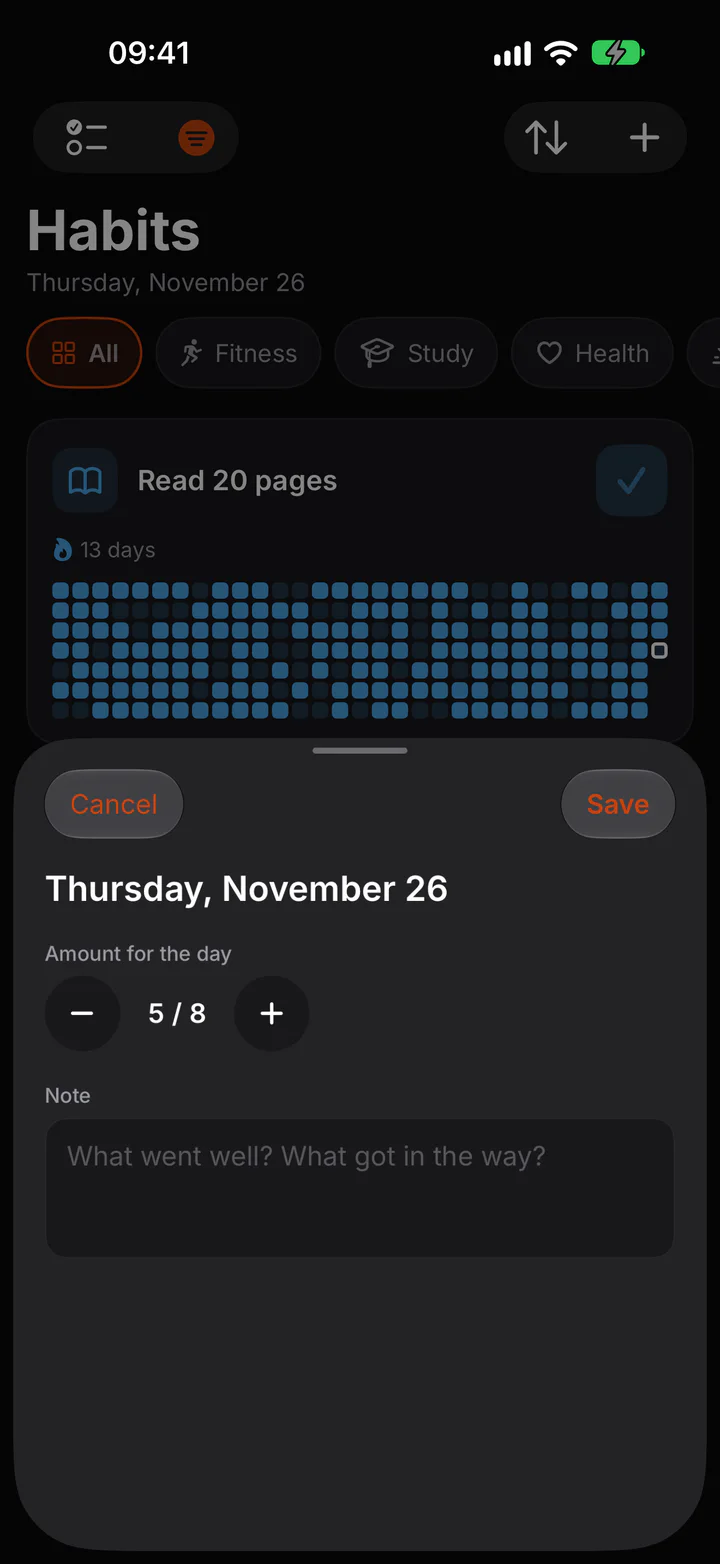
Yes / No checks off the day. Counter works toward a daily goal, like 8 glasses of water, and Measure logs an amount in a unit such as kilometers. For a habit you're quitting, the counter becomes a limit to stay under.
Goal and streak
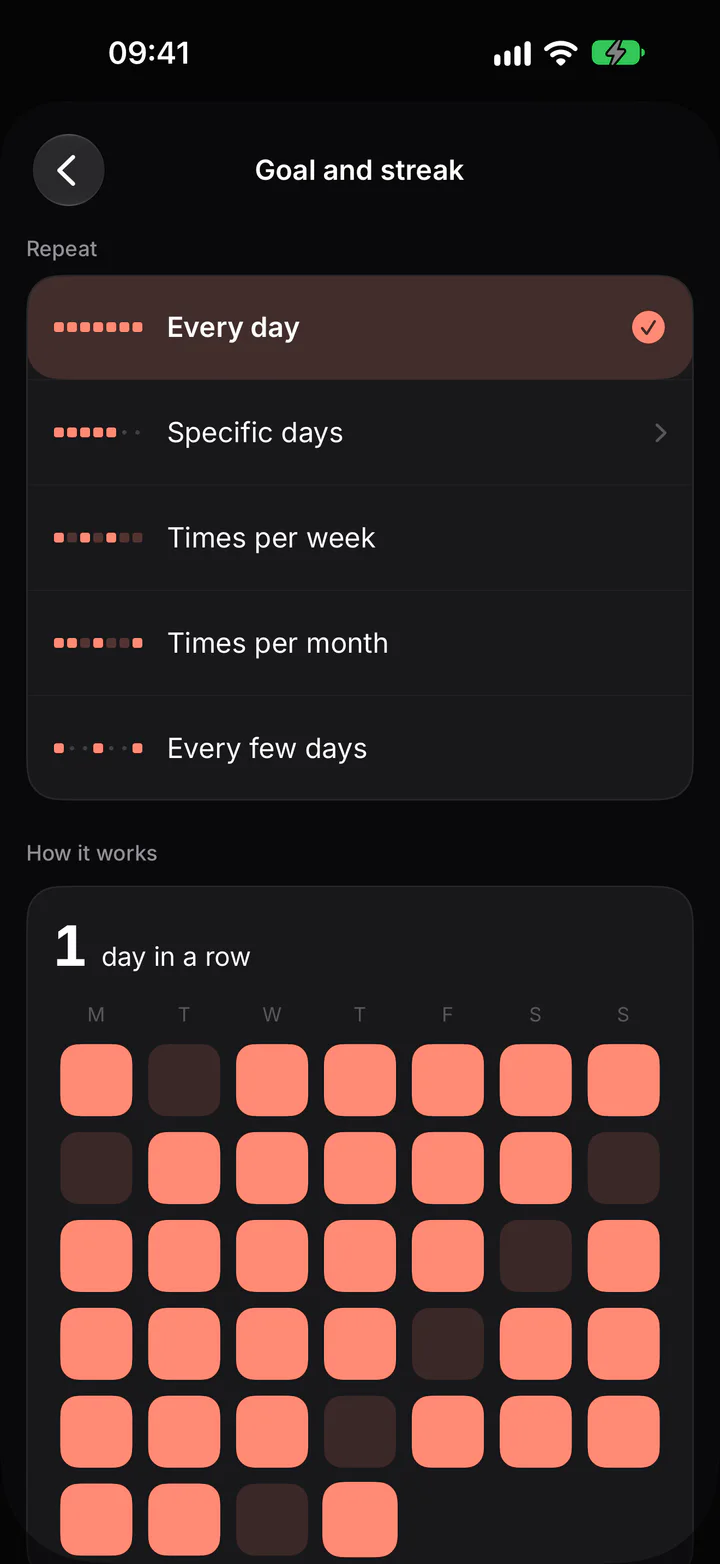
A habit can be done every day, on specific days, a number of times per week or per month, or every few days. Your streak is then counted in days, weeks or months. You can also set yourself a streak goal, which the card shows as “12 / 30” if you turn on the option in Display.
- Every day
- Specific days
- Times per week
- Times per month
- Every few days
Reminders at a set time or several times a day
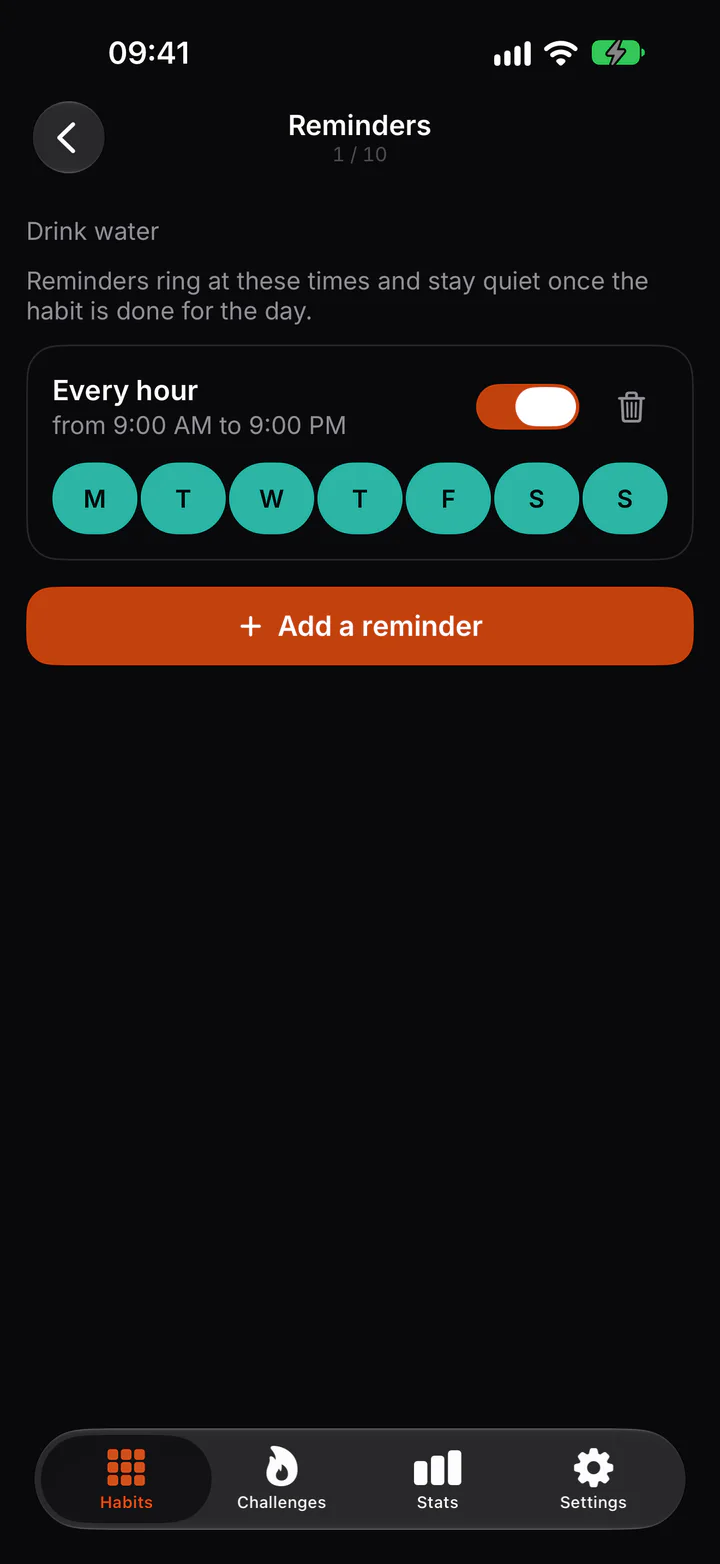
Each habit has its own reminders: at a set time, or repeated between two times, every hour for example. From the notification, “Done” marks the day complete without opening the app and “Later” pushes the reminder back an hour. Once the habit is done, its reminders stay quiet until the next day.
30-day challenges
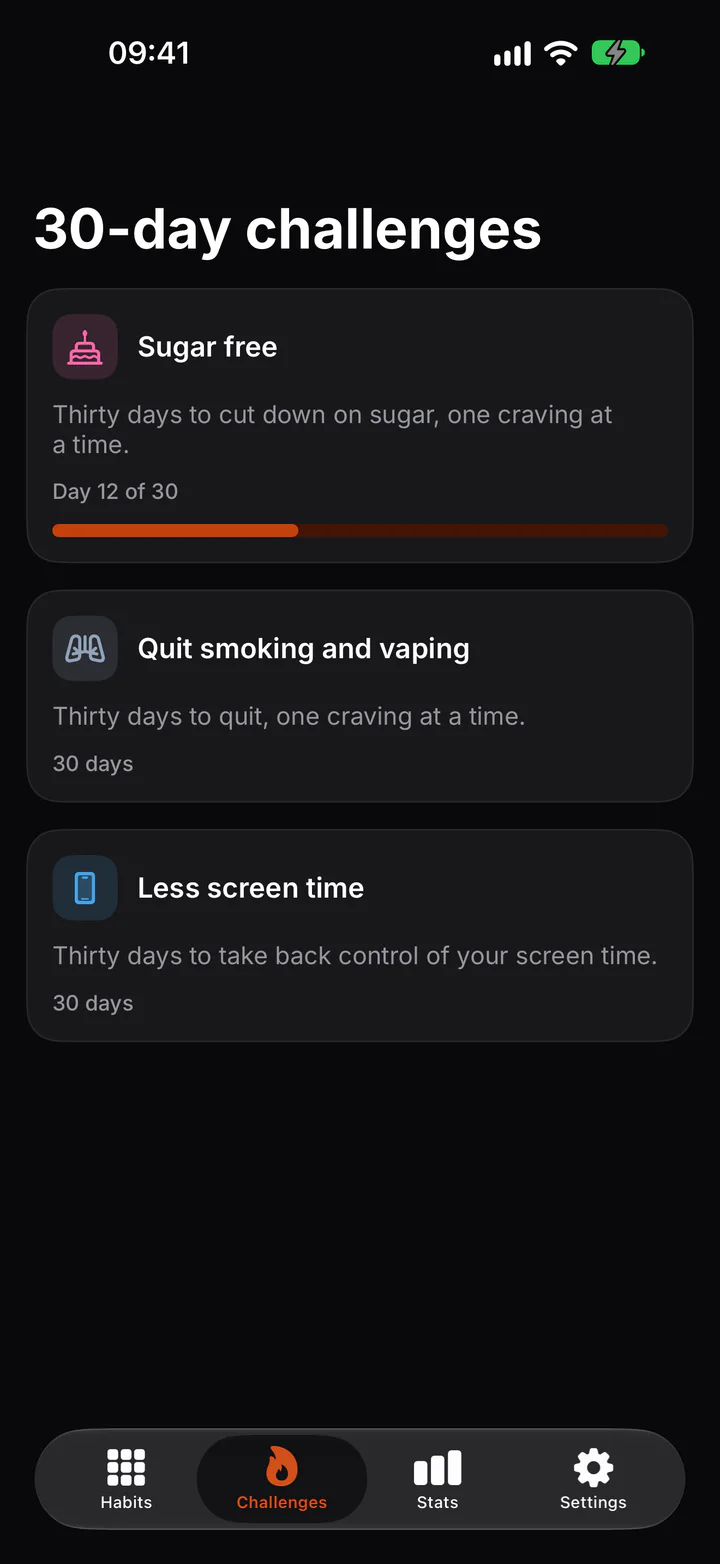
Guided challenges such as Sugar free, Quit smoking and vaping, or Less screen time help you quit. Each one follows a 30-day program with a tip for every day, and if you log a slip, the challenge picks up again the next day. If you're dealing with an addiction, talk to a health professional as well.
Stats: the Overall page, then each habit
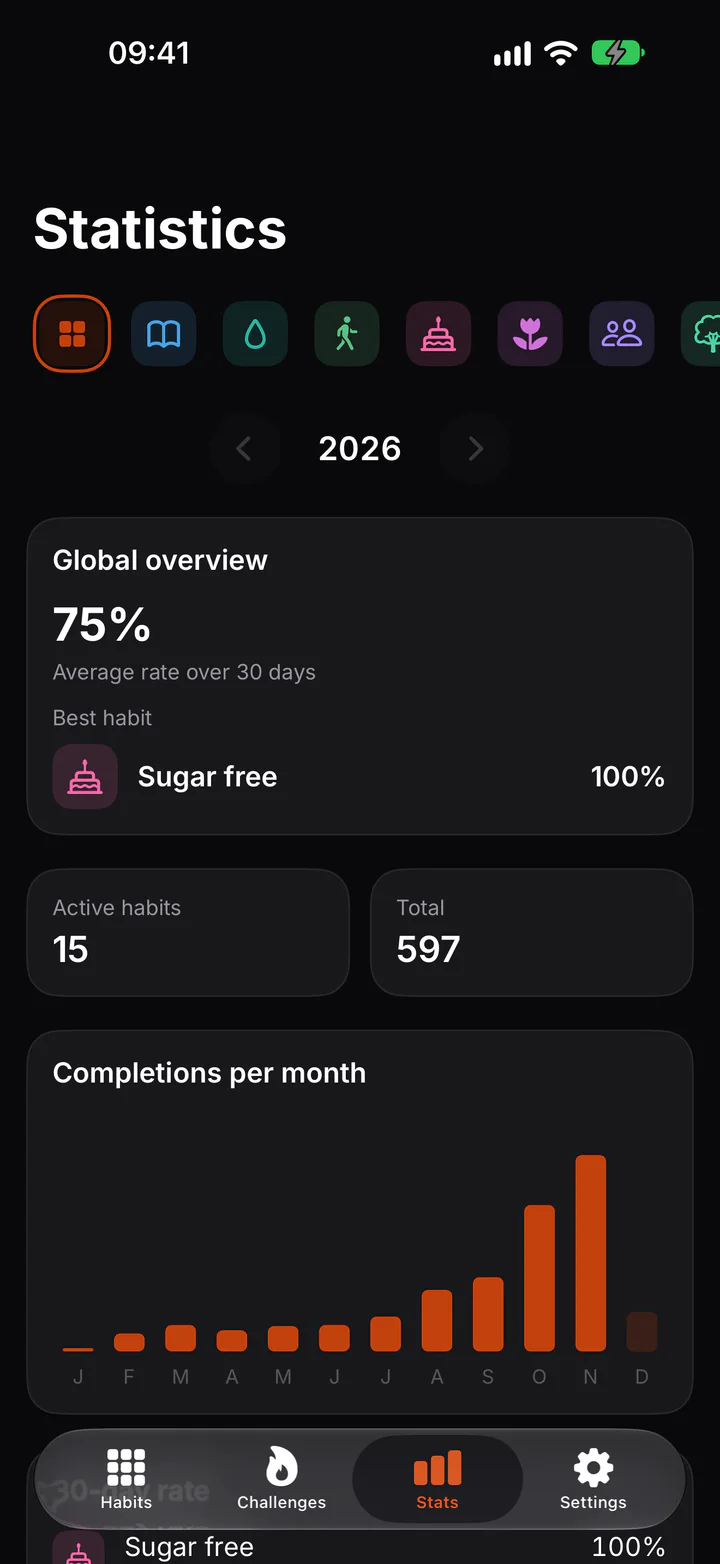
The Stats tab opens on the Overall page: your average rate over 30 days, your best habit and the rate of every other one. Swipe left to move from one habit to the next. Each one shows its year grid, streaks, success rate and completions per month.
Categories and filter
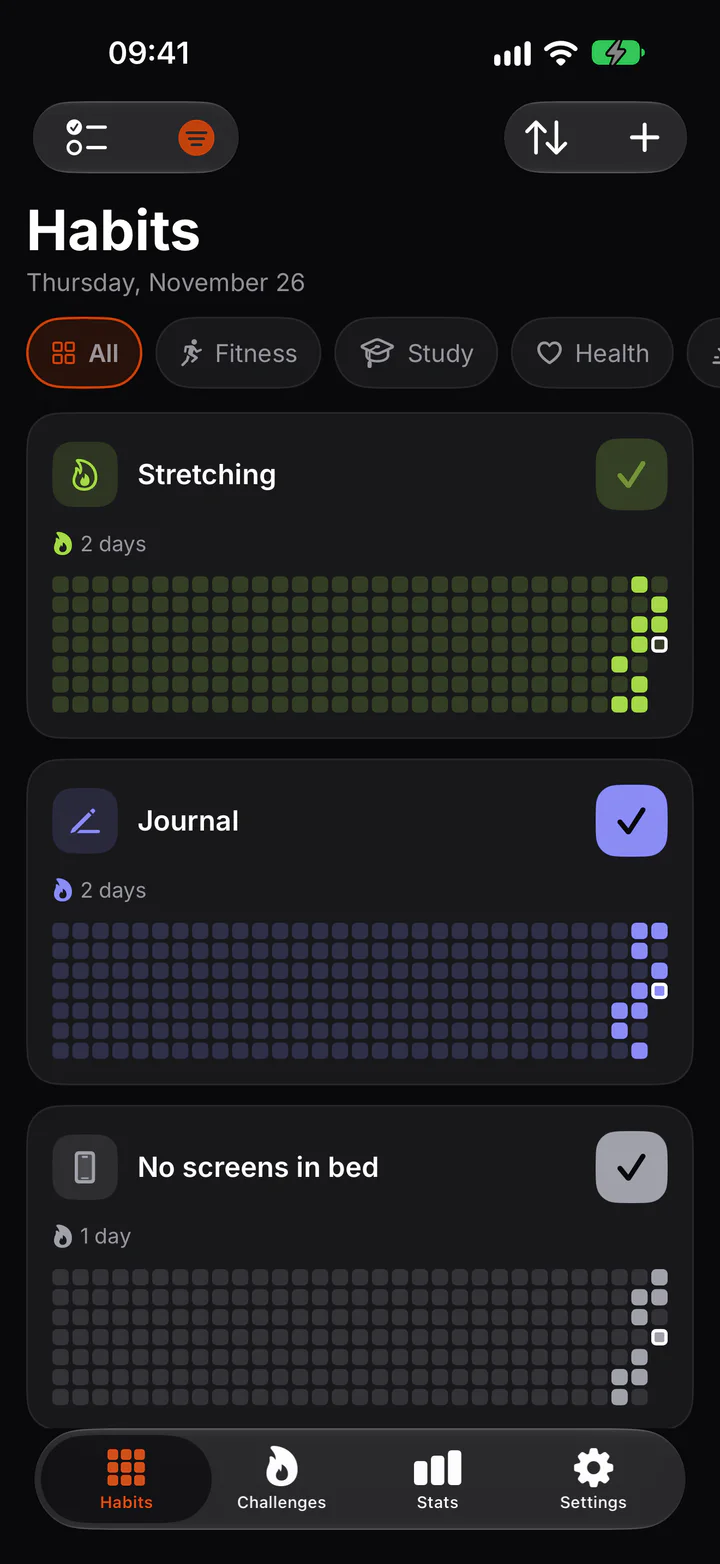
Sort your habits into categories. Twelve come built in, including Morning, Evening, Health and Fitness, and you can create your own. On the Habits tab, the filter bar narrows the list to the category you pick.
Notes
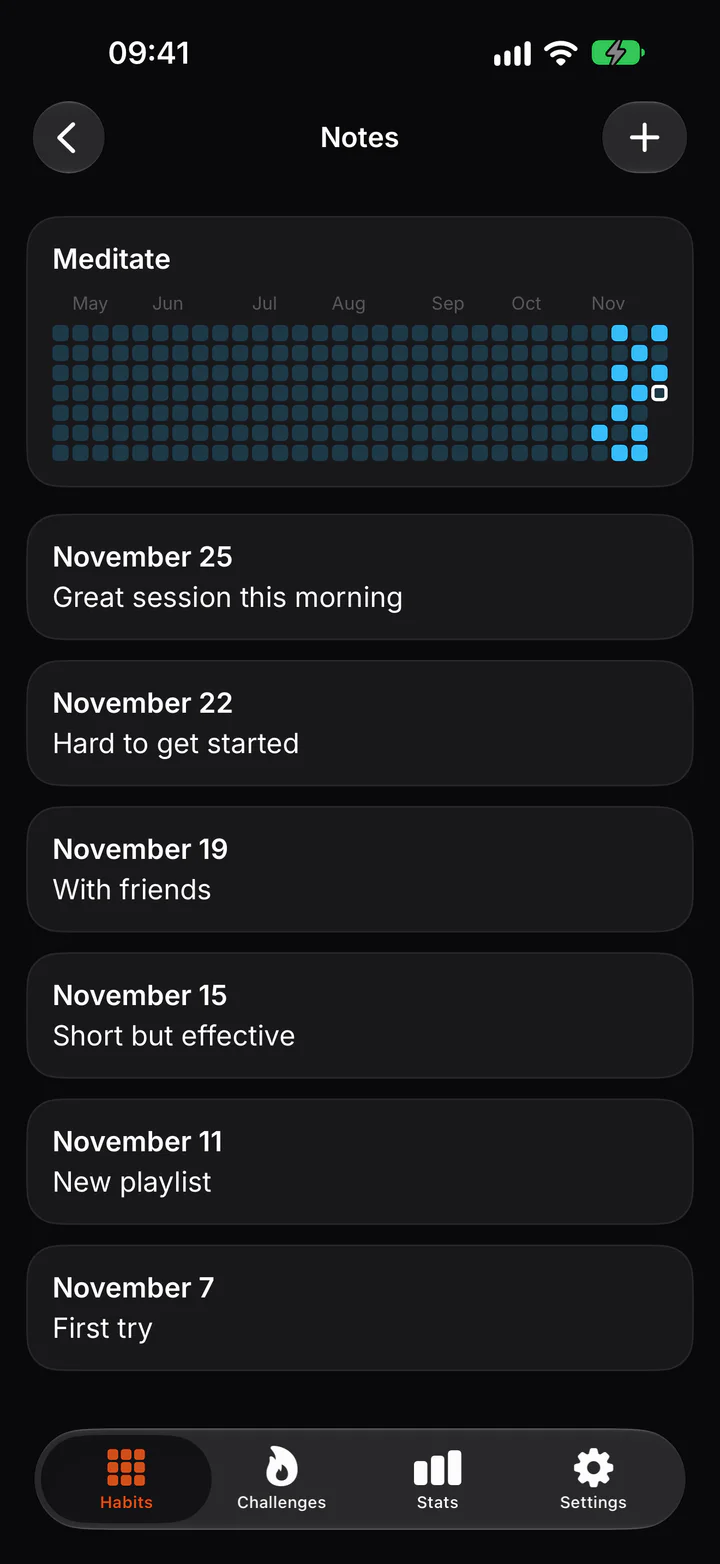
You can add a note to any day of a habit, to remember what went well or what got in the way. You can then read all of a habit's notes on its page.
Widgets: up to 12 habits in the large one
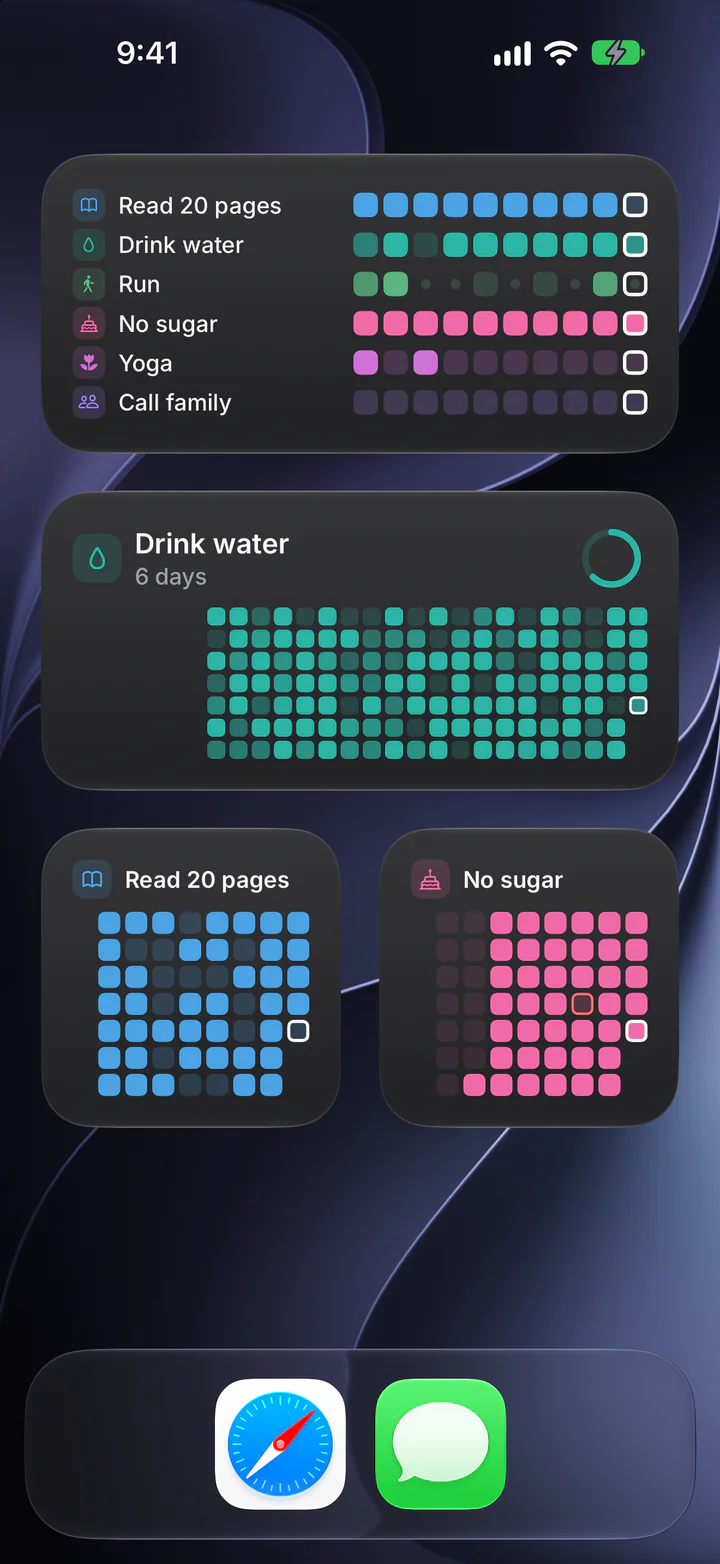
The small widget shows one habit and its grid of the last few weeks. The medium one adds the streak and a button to check off the day without opening the app. The large one shows up to 12 habits and their last 10 days. You get all three sizes on iPhone and on Android.
On Apple Watch
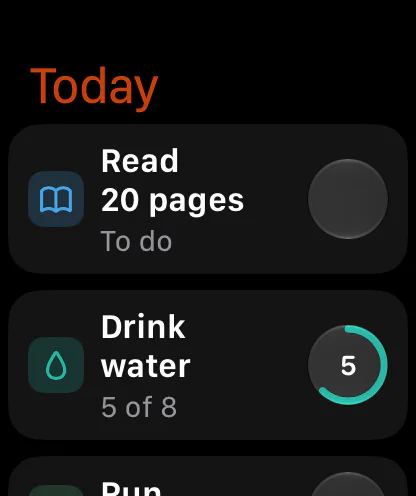
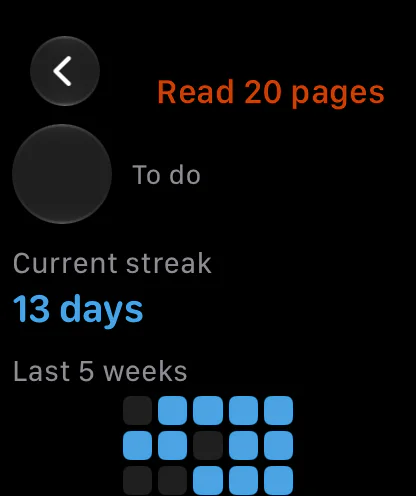
The Apple Watch app, which works with iPhone only, lists your habits for the day. A tap checks one off, the Digital Crown sets a value, and a habit's page shows the current streak along with the last 5 weeks. Your iPhone reminders reach your wrist too, with the “Done” and “Later” buttons.
On iPad too
HabitLove works on iPad in all four orientations and in a resizable window. The layout adapts to the width of the window, whether it sits next to another app or fills the screen.

Backups on iPhone and Android
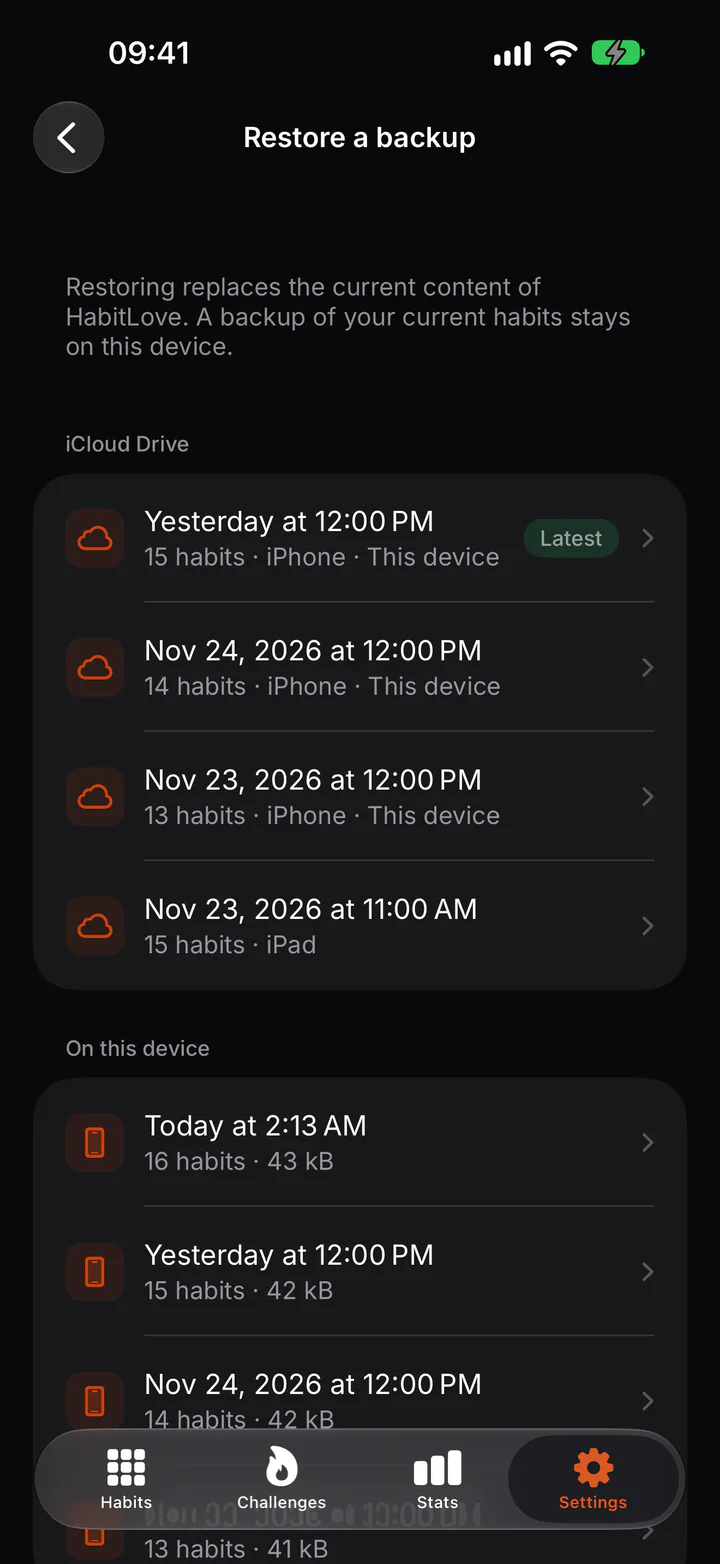
On iPhone, the daily backup saves a copy of your habits to your iCloud Drive every day. On a new iPhone or iPad, install the app with the same Apple Account, then tap “Restore a backup”. On Android, backups stay on the device, and Android's automatic backup covers the app too. On either platform you can export a copy to a file. A backup made on iPhone restores on Android, and the other way around.
Import from another app
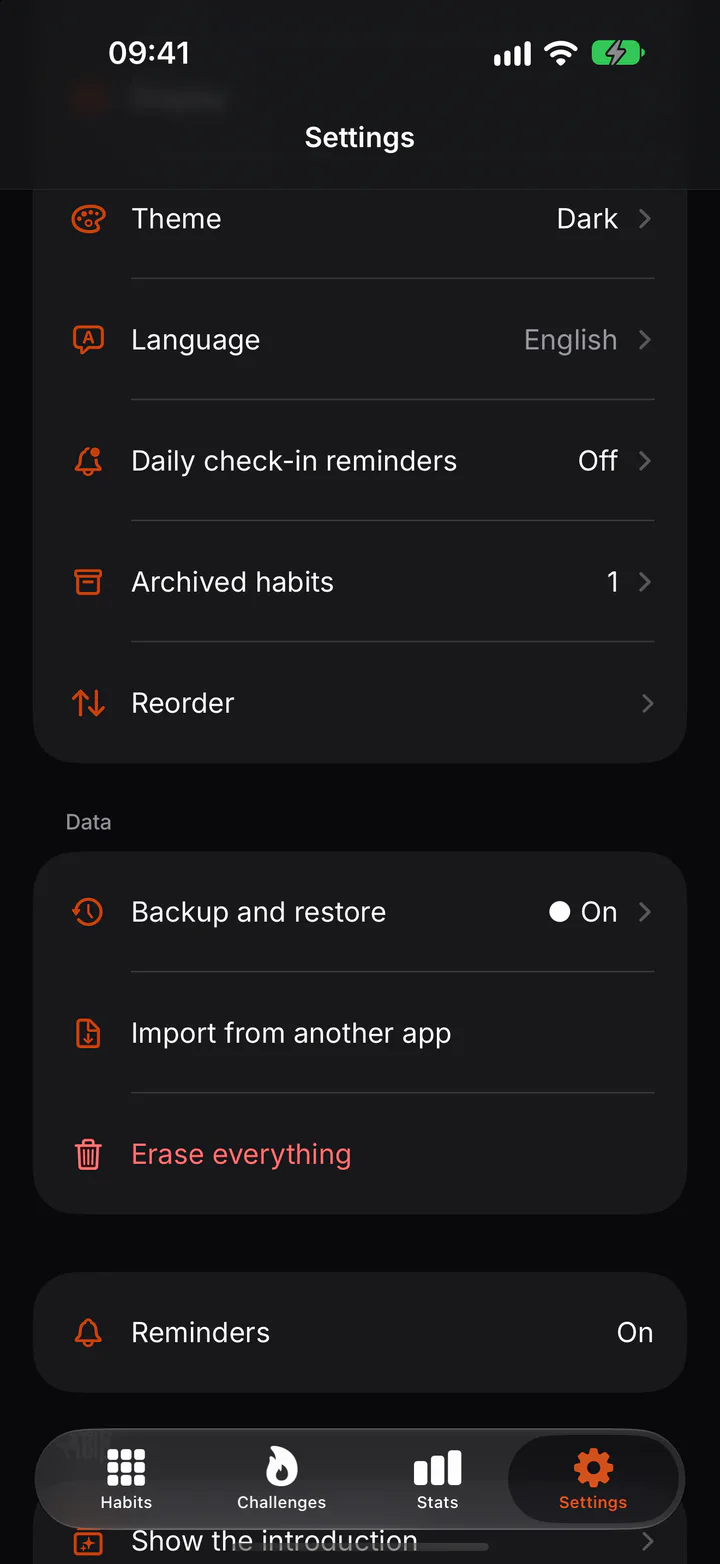
If you already track your habits somewhere else, export your data from your old app, then open Settings and tap “Import from another app”. HabitLove shows you what the file contains before changing anything. You then choose whether to add those habits to yours or replace your data.
20 languages
The app is translated into 20 languages. You can switch languages in Settings > Language without changing your phone's language.
Free, no account
HabitLove is free and doesn't ask you to sign up or give an email address. Install the app and create your first habit.
Your data stays on your device
HabitLove collects no data. Your habits are saved in a file on your device: the app has no server, no account and no tracking. On iPhone, the daily backup goes to your own iCloud Drive, and you can keep it on the device instead or turn it off. On Android, backups stay on the device.
- No data collected, no tracking
- No account to create
- Backups in your iCloud Drive or on the device
Frequently asked questions
Is HabitLove free?
Yes. The app is free, and every feature on this page is included.
Do I need to create an account?
No. There's no sign-up and no email address to give. Open the app and create your first habit.
Where is my data stored?
In a file on your phone or tablet. HabitLove has no server and collects no data. On iPhone and iPad, if you leave the daily backup on, it puts a copy in your own iCloud Drive. On Android, backups stay on the device.
Does the app work on iPad and Apple Watch?
Yes. On iPad, you can use it in all four orientations and in a resizable window. On Apple Watch, you see your habits for the day, check them off and get your iPhone reminders with the “Done” and “Later” buttons.
Is HabitLove available on Android?
Yes. The Android app has the same features as the iPhone app, on phones and tablets, with all three widget sizes and the button to check off a habit from the Home screen. A backup made on iPhone restores on Android, and the other way around. The Apple Watch app and iCloud backups are for iPhone only.
Which widgets are available?
Three sizes. The small one shows one habit and its grid, the medium one adds the streak and a button to check off the day without opening the app, and the large one shows up to 12 habits and their last 10 days. The widgets follow the theme you picked in the app.
Can I get several reminders a day for the same habit?
Yes. When you add a reminder, choose “Several times a day”: you set a start time, an end time and the interval, every hour for example. The reminders stop for the day as soon as the habit is done.
Can I import my habits from another app?
Yes, if your old app lets you export your data. In Settings, tap “Import from another app” and pick the file. HabitLove shows what it contains, then you add those habits to yours or replace your data. If the file isn't recognized, the app tells you and nothing is changed.
How do I get my habits back on a new phone?
On iPhone, install HabitLove on the new device with the same Apple Account, then tap “Restore a backup”: the backups in your iCloud Drive are listed there. On Android, the system's automatic backup can put your data back. Either way, you can also restore from a file you exported, including from an iPhone to an Android phone.
What languages is the app available in?
20 languages, including English, French, German, Spanish, Japanese and Chinese. You can change the language in Settings > Language.
When will HabitLove be on the App Store and Google Play?
Soon. The release on both stores is being prepared, and the buttons on this page will take you to the app as soon as it's live.
Latest articles
All articles- Method
How to Build a Habit That Sticks
Pick one small, precise action, tie it to a moment in your day and log it daily: a practical method for building a habit that lasts for months.
- Everyday habits
Morning Habits: Pick a Few and Make Them Stick
A morning routine lasts when it's short and runs in a fixed order. How to choose two or three habits and track them without eating up your whole morning.
- Quit
How to Quit Sugar: A 30-Day Plan That Leaves Room for Slips
Quitting sugar mostly means cutting back on added sugars. A clear rule, 30 days to make it stick, and what to do on the day you give in.

Add your first tile
HabitLove is free on iPhone, iPad, Apple Watch and Android, and needs no account.