How to Switch Habit Tracker Apps Without Losing Your History

The short answer
To switch apps without losing your history, first export your data from the old app to a file. In HabitLove, open Settings, then “Import from another app,” and choose that file. The app shows what the file contains before importing, then you add those habits to yours or replace your data. Keep the old app for a week while you check.
Why people hesitate to switch
You’ve been using a habit app for a year or two. It doesn’t quite suit you anymore: it lacks a widget, its design changed, or you just want something different. Yet you stay, because of the history. Four hundred days of reading checked off one by one, a three-month streak in progress, notes: starting again from an empty grid feels like throwing it all away. If you’re still choosing between two grid-style apps, our price and feature comparison can help you decide.
That history belongs to you, and in many cases you can take it with you. Most serious apps let you export your data to a file, and HabitLove can read the export file of some other habit apps. The switch takes five steps, from the export to your new daily cues.
Before you start: what carries over
A habit app export usually contains your list of habits (name, color, frequency), the days you checked off with their values, and sometimes your notes and reminders. That’s what the import tries to bring over.
Some things move less cleanly from one app to another, because every app has its own settings. An icon may have no equivalent and get replaced by a similar one. An unusual frequency may be adapted to the closest option. Categories or some reminders may need to be set up again.
Streaks aren’t copied. HabitLove recalculates them from the imported days, so an export that contains all your days gives you your streaks back too.
Step 1: export from your old app
Open your old app’s settings and look for a section named something like “Data,” “Backup” or “Export.” You want the full export of your data, the one that produces a file. A picture of your grid or a PDF summary won’t do, because they don’t contain the day-by-day detail.
Save the file somewhere you’ll find it again: the Files app or iCloud Drive on iPhone, the Downloads folder on Android. Make sure it isn’t empty: a file of a few bytes means the export failed.
Don’t delete the old app yet: you’ll need it to check the import.
Step 2: protect what’s already in HabitLove
If you’ve just installed HabitLove and haven’t created anything in it, skip to the next step.
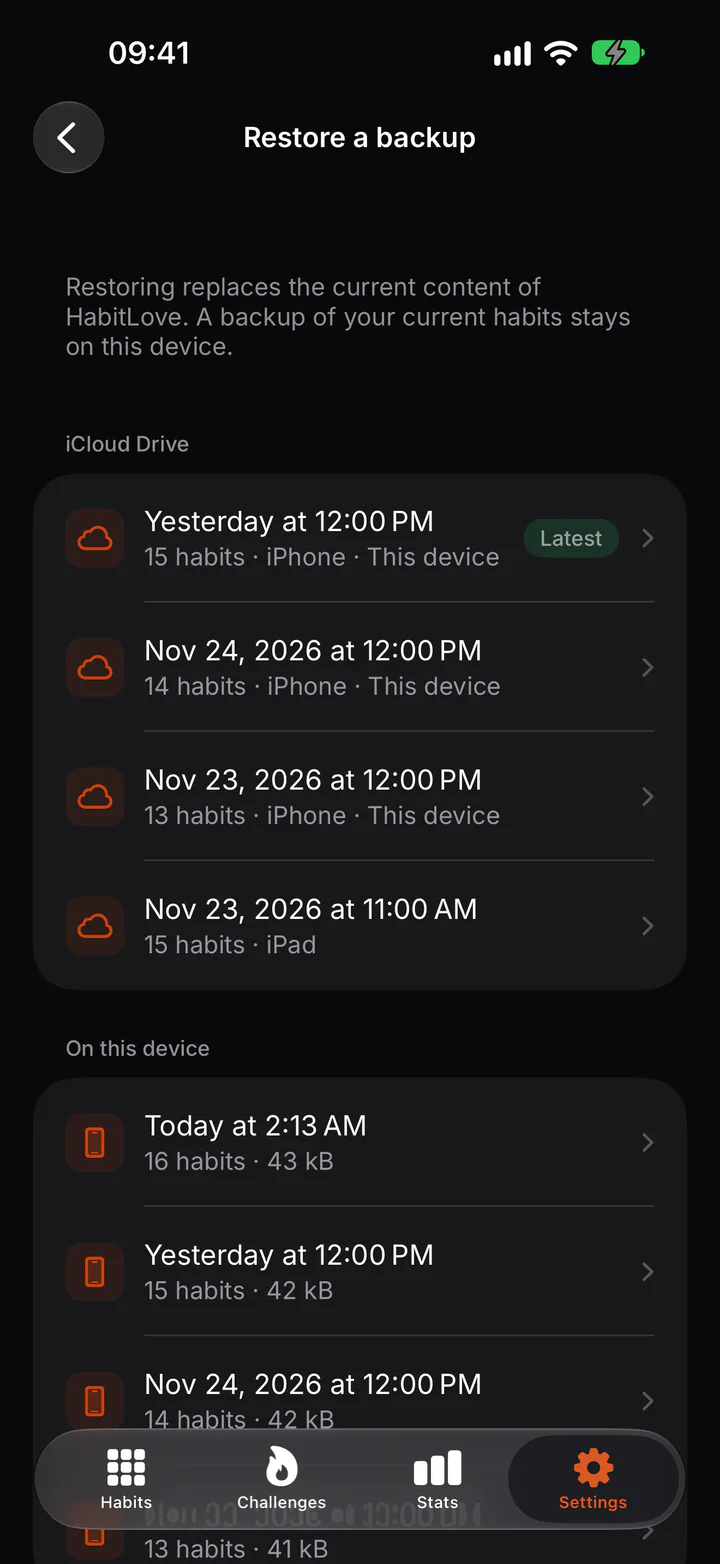
If you’ve already started tracking habits there, make a backup first. In Settings, open “Backup and restore” and tap “Back up now.” If the import goes wrong, you’ll be able to go back to this backup. It’s added to the list under “Restore a backup,” along with the earlier ones.
Step 3: import
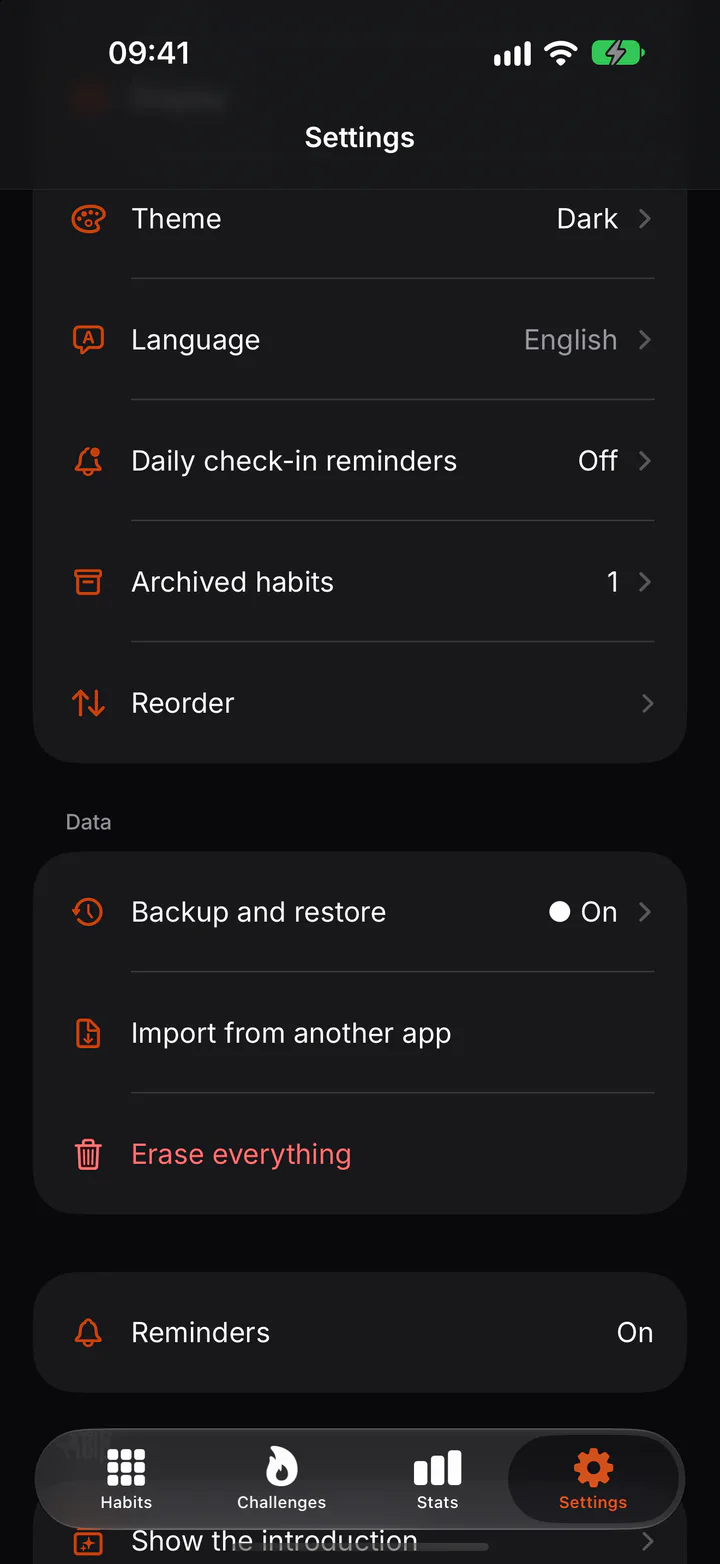
In HabitLove, open the Settings tab and tap “Import from another app.” The file picker opens: choose the file you exported in step 1.
The app reads the file and shows you what’s in it before changing anything: the number of habits, days and notes it found. Under the heading “Good to know,” it lists what couldn’t be carried over exactly. Take the time to read that list, since it tells you what to check afterward.
You then have two choices. “Add to my habits” keeps your current habits and adds the ones from the export, without creating duplicates: if a habit already exists, only its missing days are filled in. “Replace my data” removes your current habits and keeps only the ones from the export. Before a replace, HabitLove saves a safety backup on the device.
If you’re starting from an empty app, both options give the same result. If you already have habits in HabitLove, “Add” is the safe choice.
If the file isn’t recognized
The app may tell you: “This file is not a habit export we recognize.” In that case nothing has changed, and you have two things to check.
First, the file itself: go back to your old app, make sure you chose the full data export, and try again.
Then the format, because HabitLove doesn’t read the exports of every app out there. If yours isn’t supported, there’s still the manual method: recreate your active habits, then fill in the last few weeks directly in the grid. A long press on a day opens its detail and lets you mark it done. Going back over the last thirty or sixty days takes about fifteen minutes and is enough to get streaks and a 30-day rate that mean something.
Your file may also turn out to be a HabitLove backup. The app tells you so and sends you to “Restore a backup,” which is the right path for that kind of file.
Step 4: check
Right after the import, keep the old app handy and compare the two on a few points.
Count your habits. The number in HabitLove should match the one in the old app, taking archived habits into account.
Open two or three habits you know well and look at their grids. The full stretches and the gaps should fall on the same dates. Check a day you remember: a trip, a week you were sick.
Compare the current streak of your main habit. A small difference can come from a different rule, such as how days that weren’t planned are counted. If so, the “Goal and streak” screen lets you adjust the rhythm and the unit of the streak.
Then go over what the “Good to know” list flagged: set your reminders back to the right times, sort your habits into categories, change an icon you don’t like.
Step 5: set up your cues
With the old app, its spot on your screen and its reminders also helped you check in every day. Recreate those cues in HabitLove.
Replace the old widget with a HabitLove widget, in the same spot on your Home Screen. The article on tracking your habits with a widget describes the three sizes and how to add them. Then turn off the old app’s notifications so you don’t get every reminder twice.
On iPhone, make sure “Daily backup” is turned on. It saves one copy a day to your iCloud Drive and will let you get your habits back on a new iPhone. On Android, backups stay on the device, and Android’s automatic backup covers the app too. If you wonder where exactly those files go, the article on the privacy of habit data explains it.
Finally, keep the old app for a week. Check off your habits in HabitLove, and if anything looks odd, you still have the original at hand to compare. After seven days without surprises, you can uninstall it. Keep the export file where you saved it: it takes up almost no space and stays readable.
Use the move to clear things out
Like moving to a new home, switching apps is a good time to sort through your things. Among the imported habits, some have probably been abandoned for months. Archive them: they keep their history, and you can unarchive them later.
For the ones that remain, look at their numbers. The Overall page of the Stats tab ranks your habits by 30-day rate, which quickly shows which ones hold up and which need adjusting. The weekly review explains how to turn that into a decision. And if you plan to add a new habit at the same time, how to build a habit that lasts helps you size it.
HabitLove is free and needs no account: you can try the import with your own file before you decide anything.
Frequently asked questions
Will I lose my streaks when I switch apps?
Streaks are recalculated from the imported days. If your export contains every day you checked off, you get your grids and your streaks back. Check them on two or three habits right after the import, comparing them with the old app.
What if my old app has no export?
You won’t be able to import automatically. Recreate your habits in HabitLove, then fill in the last few weeks by hand: a long press on a day in the grid lets you edit it. Write down your best streaks somewhere before you uninstall the old app.
Does the import erase the habits I already have in HabitLove?
Only if you choose “Replace my data.” With “Add to my habits,” your current habits stay and the ones from the export are added, without duplicates. Before a replace, HabitLove saves a safety backup.
Are my reminders and categories carried over?
Not always. After reading the file, HabitLove lists under “Good to know” whatever couldn’t be carried over as is. Plan a few minutes after the import to check your reminders and sort your habits into categories.

Track this habit in HabitLove
One grid per habit, with reminders and streaks. Free, no account needed.